There are three Roku Smart TVs — one in the living room over the fireplace, and one in each bedroom. There's no cable or satellite; everything streams over the WiFi, just like at home.
Turning on & Guest Mode
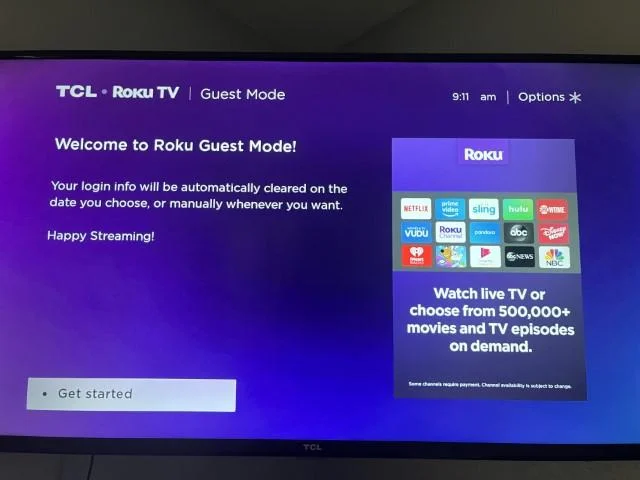
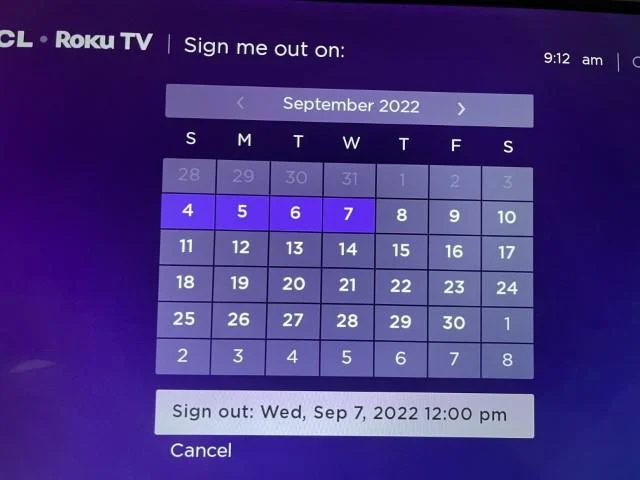
Power on with the button at the top of the remote. If a TV starts in Roku Guest Mode, it'll ask for your checkout date — and here's the magic: on that date it automatically signs you out of every app you logged into (Netflix, Hulu, and the rest), so the next guests can never reach your accounts.
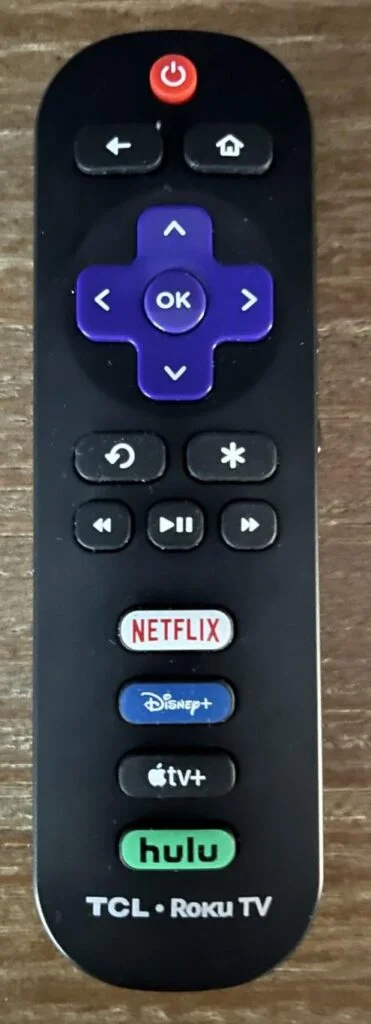
- 1Press the red power button at the top of the remote.
- 2On the “Welcome to Roku Guest Mode” screen, select Get started.
- 3Pick your checkout date — the TV will sign you out of everything automatically that day.
- 4Sign in to your own streaming apps (Netflix, Hulu, Disney+, Max, whatever you use). Your logins stay private and clear themselves on your date.
Use your own device (HDMI)
Want to plug in a laptop, game console, or streaming stick? There's an HDMI port on the back of each TV. Connect your device, then press Home on the remote and select the matching HDMI tile to switch to it.
Stream from your phone (AirPlay & Cast)
The TVs are on the same WiFi you'll be using, so it's easy to send photos, video, or music straight from your phone. On an iPhone or iPad, tap the AirPlay icon and choose the TV. On Android, tap Cast or screen-mirroring — great for sharing trip photos on the big screen.